Steam
Connect your Steam library to browse your games, manage downloads and check installation state. Steam Cloud support appears per title when configuration and stored saves are available.
 WehniX Launcher
 · Public beta
A native launcher for your Steam, Epic and GOG libraries. Manage Windows and Linux engines, tune each game, and keep your saves close.
Apple silicon · macOS 26.4+ · Early beta
YOUR LIBRARY
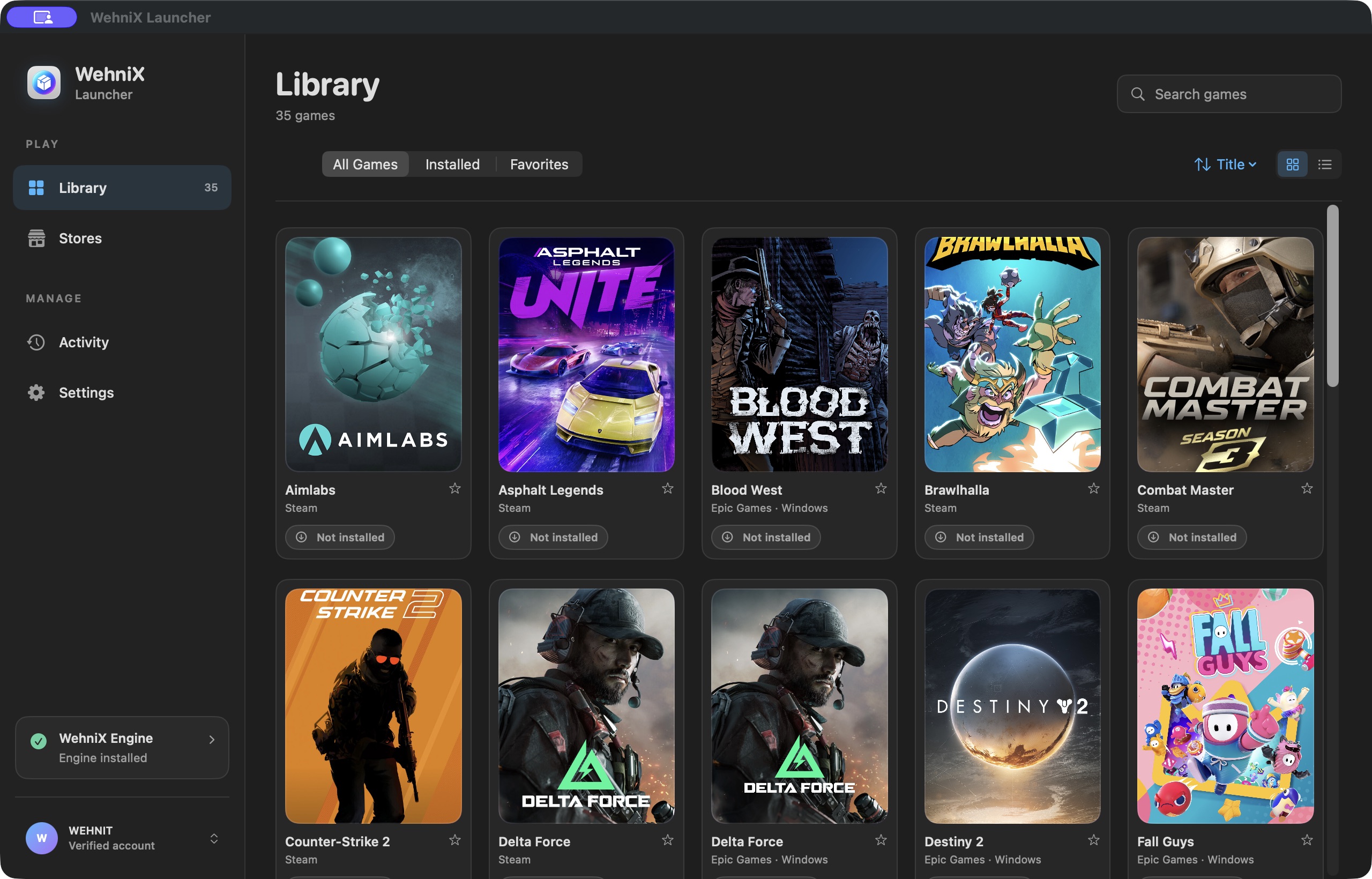
Connect your accounts, browse your collection and manage the games you want to play. Each store keeps its own account and ownership requirements.
Connect your Steam library to browse your games, manage downloads and check installation state. Steam Cloud support appears per title when configuration and stored saves are available.
Bring your Epic library into the launcher and manage game installs through the integrated store workflow.
Connect your GOG account to browse your collection and install games alongside the rest of your library.
ENGINES & GRAPHICS
Windows and Linux games take different paths. The launcher brings engine selection and graphics controls into the same place, with availability determined by your Mac and the selected runtime.
Run Windows executables in a managed Wine environment. Keep game-specific arguments, working directories and runtime preferences with your launch configuration.
The bundled native Wine configuration requires macOS 26.4 or later.
Choose the Linux engine for a game’s launch configuration. FEX provides x86 translation within the Linux runtime on Apple silicon.
Linux requires Apple silicon and macOS 26.0+. Linux D3DMetal requires macOS 26.4+.
DXMT is available as a graphics backend where supported by the selected engine and game configuration.
D3DMetal has its own host and runtime requirements. Choose from the options available in the launcher and test the title with your settings.
DirectX features, anti-cheat, DRM and individual game updates can affect whether a title runs. A game appearing in your library establishes ownership and discovery. Its playability depends on the game and runtime.
BEYOND THE PLAY BUTTON
Launch a custom executable or batch file with its command arguments and working directory. Keep a game’s existing startup flow when it needs a particular script or launcher.
Check cloud-save status in the launcher and use manual sync when you need it. Close the game first so its save files have finished writing.
Automatic update checks discover and stage a compatible publisher-signed release. Verification covers the signed manifest and downloaded artifacts. App updates install when you quit with games and launcher operations idle. Engine updates activate when the engine is idle.
Download the initial beta manually. Future updates are verified against the publisher’s signing key before installation.
FIRST LAUNCH
Keep the release notes open during the first install. They include the requirements and any extra steps for that particular beta.
Read the release notes ↗Open the published DMG and drag the launcher into Applications before starting it.
The initial beta is ad-hoc signed. After trying to open it, macOS may offer System Settings → Privacy & Security → Open Anyway. Warnings and available controls vary by macOS version.
The launcher verifies and installs its bundled engines automatically. If Rosetta is required, complete Apple’s installation prompt during setup.
Sign in to the store you use, choose a game and review its engine settings. Custom executables and batch files can use Run Command.
BEFORE YOU DOWNLOAD
These recommendations help plan your setup. Game requirements and runtime overhead vary by title.
COMMON QUESTIONS
Compatibility depends on the game, graphics backend, engine version and Mac. Anti-cheat, DRM and unsupported graphics features can prevent a game from launching. Review release notes and report the exact configuration when something fails.
Yes. Connect the store account that owns the title and follow that store’s sign-in and entitlement requirements. WehniX Launcher helps manage your library and runtime setup.
Use Run Command to choose the executable or batch file, preserve its arguments and set its working directory. The selected engine still needs to support the program.
Close the game and let its save files finish writing before a manual sync. Check the launcher’s cloud status and resolve any reported conflicts before switching devices.
The button checks GitHub for the latest published DMG. If that check fails, it links to our GitHub releases so you can download the beta there. Open the newest release and choose its DMG.
Open a GitHub issue with your Mac model, macOS version, launcher version, game and selected engine. Include reproduction steps and relevant logs after checking them for account details or other private information.
TRY THE BETA
Check the latest release, try your games and tell us where the launcher needs work.